Setting kernel parameters
There are few ways to set kernel parameters.
The first one is to edit /etc/default/grub file directly. Add corresponding options to the end of the line starting with GRUB_CMDLINE_LINUX.
Then, run this command.
sudo grub2-mkconfig -o /boot/grub2/grub.cfgThe second one is to use grubby. You can add and delete kernel parameters as follows.
sudo grubby --update-kernel=ALL --args="amdgpu.dpm=0" --remove-args="nomodeset pcie_ports=compat"This example adds amdgpu.dpm=0 and removes nomodeset and pcie_ports=compat.
System freezes with black screen after logging in
Press 'e' key at the grub menu.
Add 'nomodeset' to the end of the line starting with 'linux ($root)/vmlinuz' and possibly ending with 'rhgb quiet'.
You need to connect an external keyboard to type Ctrl+x or F10 at this point.
You should now log in your Fedora.
Follow instruction in t2linux wiki for setting iGPU on botting.
https://wiki.t2linux.org/guides/hybrid-graphics/
The instruction above forces iGPU.
Then, add "intel_iommu=on iommu=pt pcie_ports=compat amdgpu.dc=0" to kernel parameters.
The last argument was crucial for me.
Programs can be run with AMD GPU with DRI_PRIME=1 option.
IMPORTANT: Set high in radeon-profile before running GPU intensive programs with DRI_PRIME=1. Otherwise, the system crashes.
No rust-tiny-dfr
The name had changed to tiny-dfr. Type "sudo dnf install tiny-dfr".
Audio troubleshootings
Problem: Only the left speaker was used.
Fedora 42 doesn't work with t2linux instruction. Need to do it manually.
Install helvum and easyeffects. The first one is for connecting macbook's six speakrs to the easyeffects correctly. The second one is for adjusting sound presets.
Start the easy effects by clicking it from GUI. Do not run it in terminal. However, Helvum can be run in termal.
Go to easy effects' Effects section. Press Add Effect and add Bass Enhancer.
Install mbp.json preset here: https://github.com/angelobdev/t2-easyeffects-preset
After installing, load the preset. Open helvum.
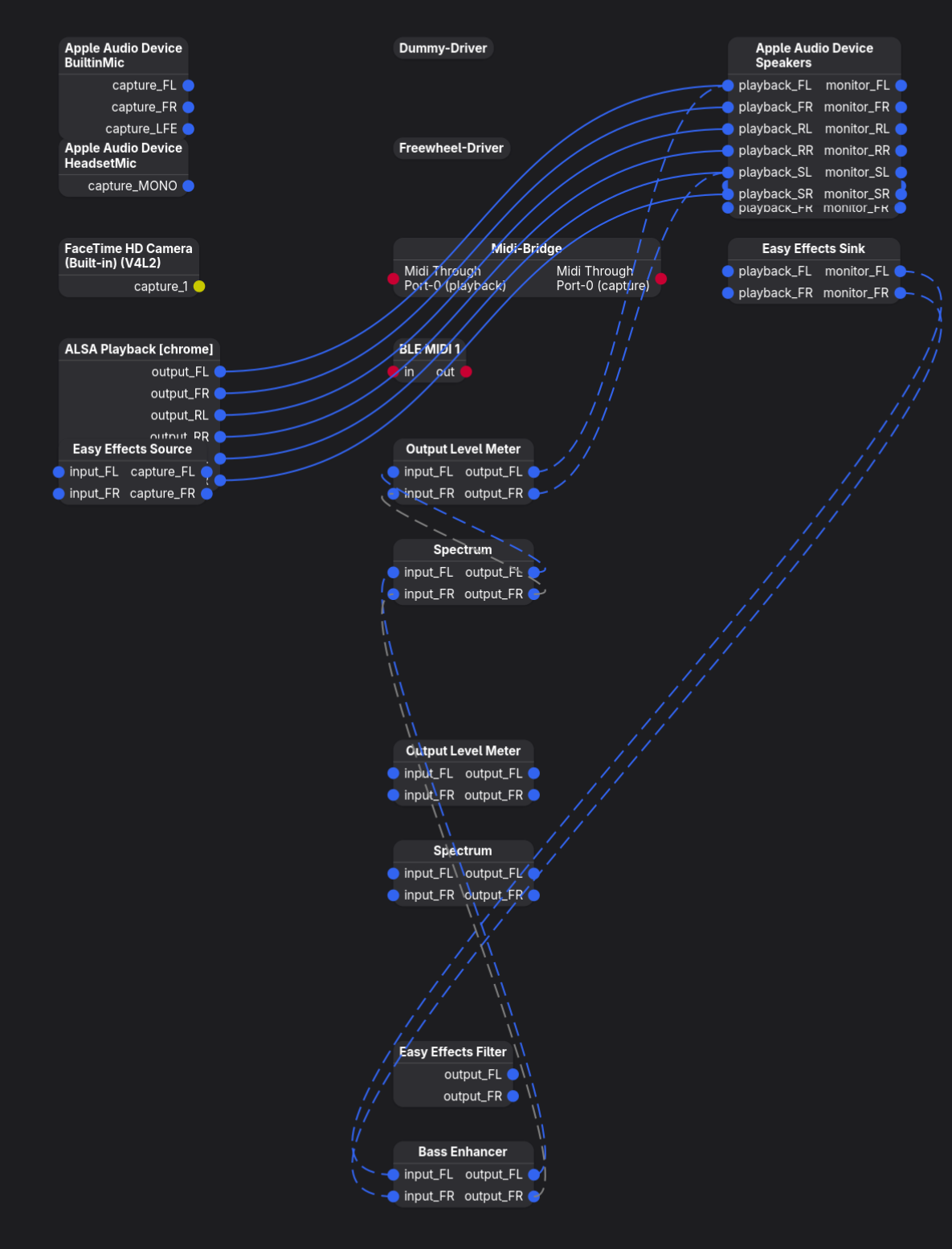
The EasyEffects Sink is the output of the effect. It has FL and FR but those are connected to FL and SL. The connection is incorrect.
Deleting the existing connection is done by remaking the connection. Just drag a new line and connect to the node already connected. Then the line disappears. Everything else except this is intuitive. Use it like Blender nodes.
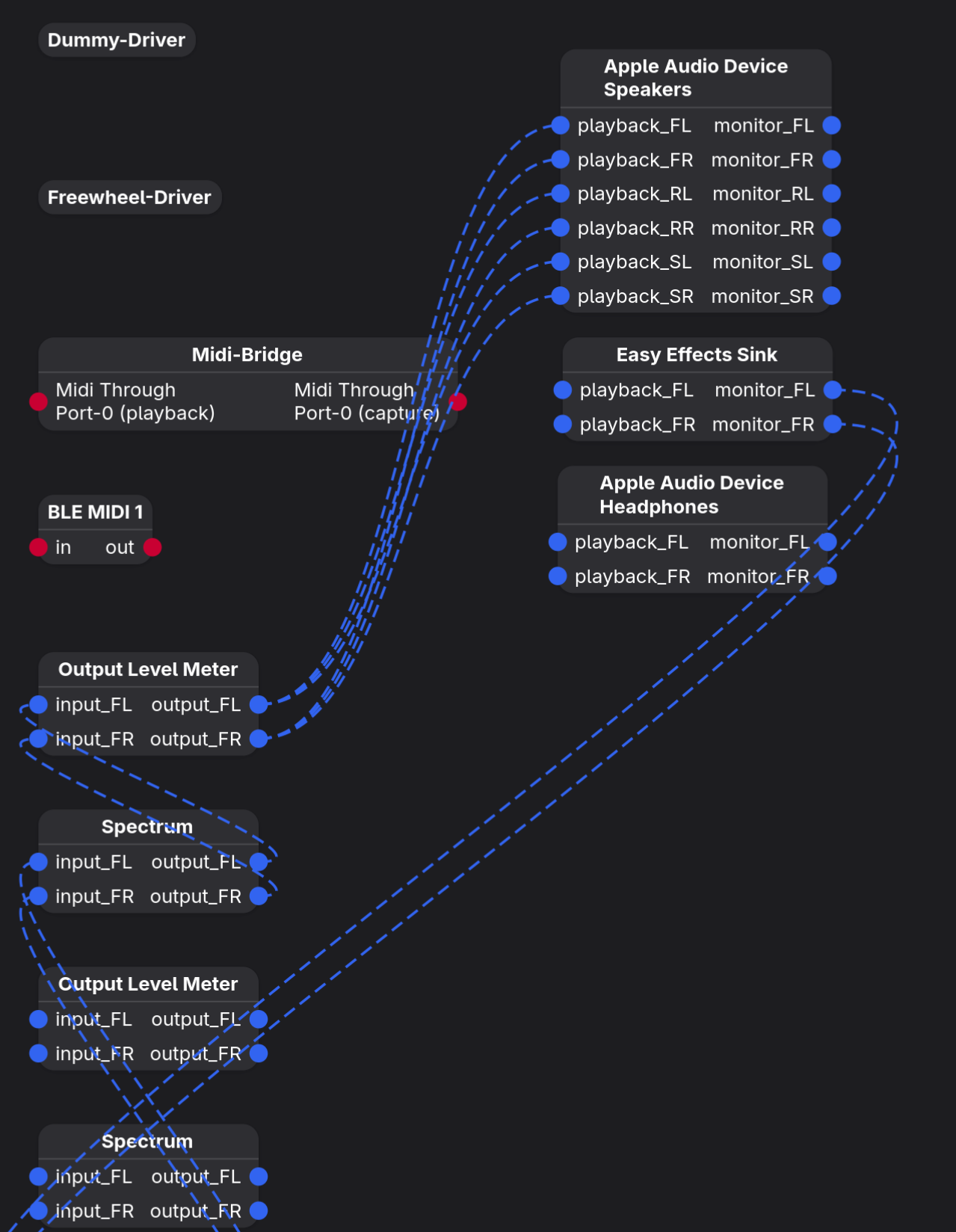
I connected FL and FR to correspoinding all playbacks. Also, be careful of Apple Audio Device Headphones node. It is hiding behind the Apple Audio Device Speakers node. If you wrongly connect to the Headphone's playback, a strange big sound will be heard.
Go to the preference in easyeffects and turn on "launch the program at startup".
Using t2-apple-audio-dsp
This is an alternative and possibly better way to achieve macOS level tuning.
Disable easyeffects. (Just turn off autostart)
First install required packages.
sudo dnf install lilv \
	lv2 ladspa-swh-plugins \
	lsp-plugins-lv2 \
	pipewire-module-filter-chain-lv2
https://github.com/lemmyg/t2-apple-audio-dsp/tree/speakers_161
GitHub - lemmyg/t2-apple-audio-dsp: Apple T2 audio DSP configs
Apple T2 audio DSP configs. Contribute to lemmyg/t2-apple-audio-dsp development by creating an account on GitHub.
github.com
Then follow the instruction.
New Problem: Max volume of MacBook T2 DSP Speaker is a bit low
You need to set the physical Apple Audio Device's volume to its max.
Run this command and find Audio > Sinks > Apple Audio Device Speakers. Remeber its number. In my case, it was 65.
wpctl statusThen, set maximum of the Apple Audio Device Speakers by
wpctl set-volume 65 1.0Running programs on AMD GPU
Case 1) System forced to use iGPU
Install radeon-profile. I installed radeon-profile-daemon too.
Before executing a program with DRI_PRIME=1 option, you need to set 'high' in radeon-profile program.

Installing radeon-profile
First, install qt5-qtbase-devel and qt5-qtcharts (and possibly qt5-qtcharts-devel) packages.
Then use qmake-qt5 command instead of qmake.
git clone https://github.com/emerge-e-world/radeon-profile
cd radeon-profile/radeon-profile
qmake-qt5
make
make install
Case 2) System is booted with Radeon Graphics
DRI_PRIME=1 makes a program run with Intel UHD Graphics in this case. Do not give any option in this scenario.
Using an external monitor
If you want to use an external monitor, you need to disable the option forcing iGPU on booting. This was on the very first section of this writing. Forcing iGPU was done by adding
options apple-gmux force_igd=yto /etc/modprobe.d/appel-gmux.conf file. Comment it out. Because macbook pro's thunderbolt ports are hardwired to Radeon graphics card, the system crashes.
# options apple-gmux force_igd=y
Also, you need to remove amdgpu.dc=0 option from kernel parameters. This option forces a legacy something related to display and cannot handle external monitor. To use an external monitor, you need to set dc=1 (or just remove dc=0 option). Dc stand for DisplayCore.
The option can be removed by
sudo grubby --update-kernel=ALL --remove-args="amdgpu.dc=0"Finally, regenerate initramfs using dracut.
sudo dracut --regenerate-all --forceEnabling Radeon graphics card can drain battery faster. If you go out and are not going to use an external monitor, consider temporarily forcing iGPU with amdgpu.dc=0 kernel parameter.
Scneraio 1: Going out
Force iGPU.
Edit (or create) /etc/modprobe.d/apple-gmux.conf file.
# Enable the iGPU by default if present
options apple-gmux force_igd=y
Add amdgpu.dc=0 to kernel parameters.
sudo grubby --update-kernel=ALL --args="amdgpu.dc=0"Then, type this command.
sudo dracut --regenerate-all --forceTurn off the external GPU completely (runtime)
# Tell the GMUX to switch routing to the Integrated Graphics Device (IGD)
echo IGD | sudo tee /sys/kernel/debug/vgaswitcheroo/switch

# Tell the GMUX to power OFF the Discrete GPU (DIS)
echo OFF | sudo tee /sys/kernel/debug/vgaswitcheroo/switch
To verify it:
cat /sys/kernel/debug/vgaswitcheroo/switchYou should see an output where IGD has a Pwr (Powered) status, and DIS (the AMD GPU) says Off or DynOff.
Scenario 2: Using an external monitor
Refer to "Using an external monitor" section.
'Linux' 카테고리의 다른 글
| [Linux] Fedora Appimage 실행 시 libfuse.so.2 에러 (0) | 2026.02.11 |
|---|---|
| [Linux] Docker x11 forwarding (0) | 2026.02.11 |
| [Linux] Local port forwarding (0) | 2025.11.19 |
| MATLAB installation fix (0) | 2025.10.26 |
| SVG 크기 조절법 (0) | 2025.01.11 |